
- Loading…

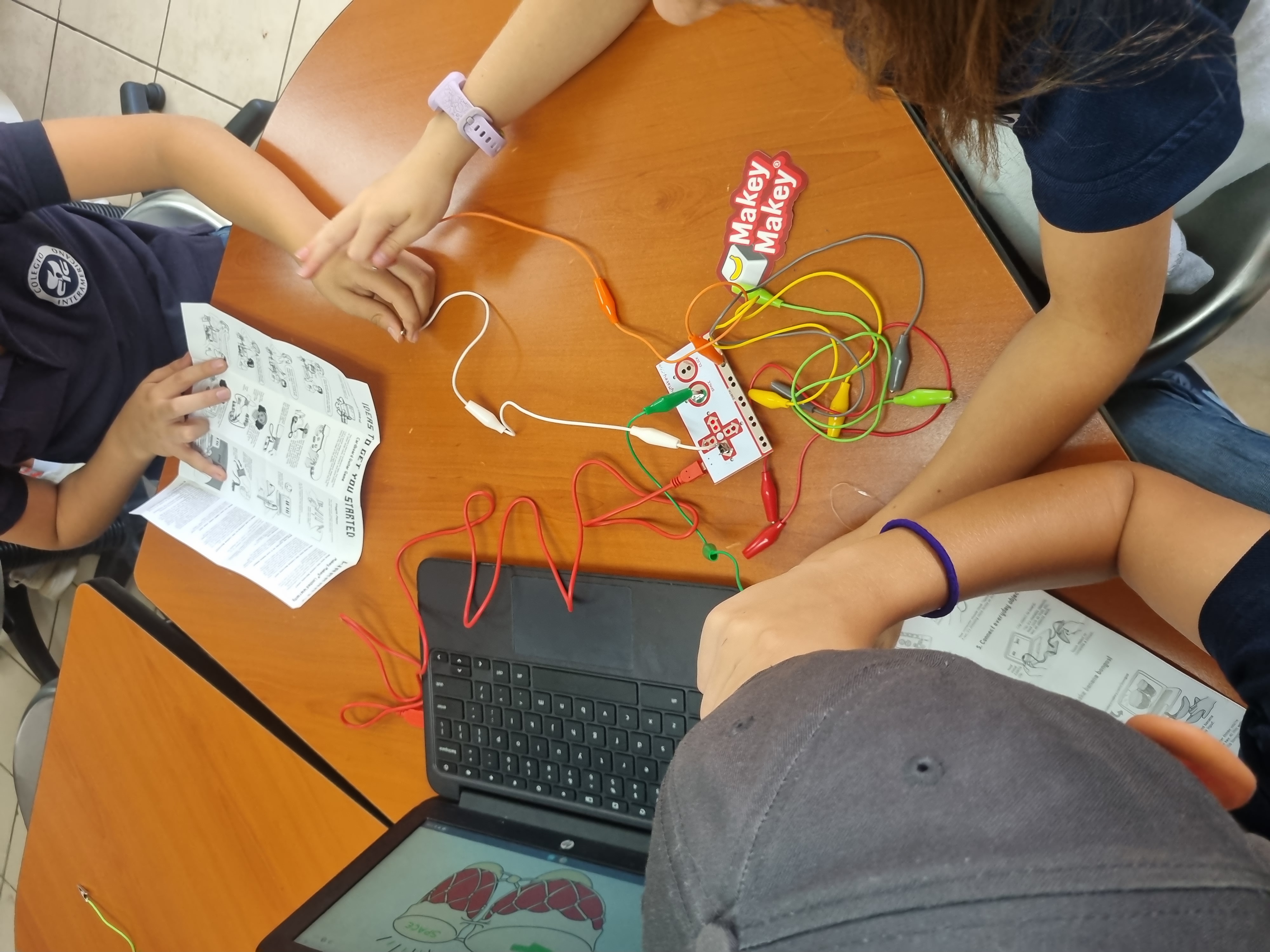
Students will create their own game in which they will react quickly when a signal appears using scratch and Makey-Makey. The students create their code, and connect the makey makey. after the game, students will assess and evaluate their work with a rubric.

By the end of this experience, youth will recognize or be able to
As a result of this lesson, I learned that students are able to take their creativity anywhere they want. If we give them the tools and the scafold necessary, they tend to use their knowledge and go beyond what we ask. This task was a great way to promote creativity in my students.
Presenting the topic and having students curious about what they will be doing. Estimated time: 10 minutes
Give welcome to students
Explain that you will be working with reactions
Ask them, “who has fast reactions?”
Test it by doing a quick game of Simon says to test their reactions
During this time, you will explain students what the game consist and how they will play. Estimated time: 10 minutes
Explain students that they will be playing on Scratch a game of quick reaction. (If students don’t know what scratch is, explain that it’s a coding program that you will be playing with today)
Display the code on the board and show students how the game works.
In order to play, they will be using a makey makey circuit that they have to activate for the game to work. This option is a fun adition to the game but they can also use a mouse or a simple click if they don't have the option of having a makey makey Estimated time: 15 minutes
Show students the makey-makey and the different components.
Use the “click” option and show how when you touch the cable connected to it, the computer reacts.
If they have the level, you can assign one student to be “the click” and the person grabbing earth will have to touch “the click” in order to react.
Students will get their computer and create their program on scratch.. You can show them the general idea and have them build it, or display the exact code and have students analyze if it makes sense. Estimated time: 30 minutes
Have students go to scratch.mit.edu and sign in so that their code is saved.
Create a new code and ask them to create a code that follows this idea:
During this time, the students test their creation and play. They can record their times in a worksheet attatched to end of the lesson. Estimated time: 15 minutes
Give students a worksheet to write down their wait time.
Students have time to play and test their creation. During this time is easier to go group by group helping those who need or giving a small extra challenge to the ones who are advanced.
To assess this lesson students will compare the results they got and compare with the class. This will give you information on how they set up the circuit and how the programmed the game. Estimated time: 15 minutes
Ask students to share the information they recorded on their worksheet.
During the lesson you were able to observe how they connected the Makey-Makey and if they were able to create the program.
The rubric is used throughout the lesson rather than only at the end. During programming, provide formative feedback using the Programming Skills area. While students test and refine their reaction-time game, they receive peer and teacher feedback aligned with the Game Functionality stage. During the final presentations, the complete rubric is used for summative assessment. Students also complete a brief self-assessment using the rubric before submitting their final project.
Having trouble? Let us know by completing the form below. We'll do our best to get your issues resolved quickly.
"*" indicates required fields