
- Loading…

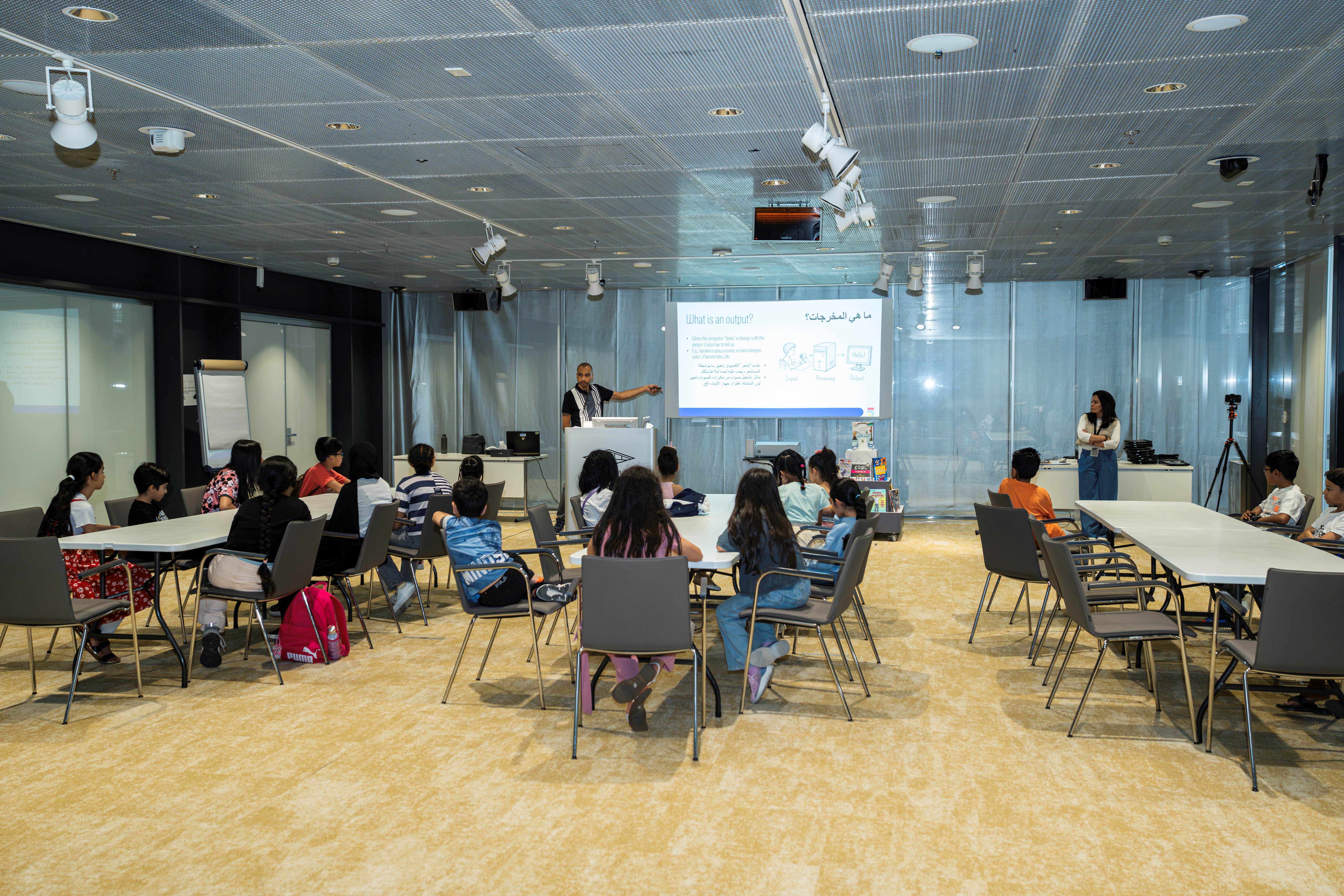
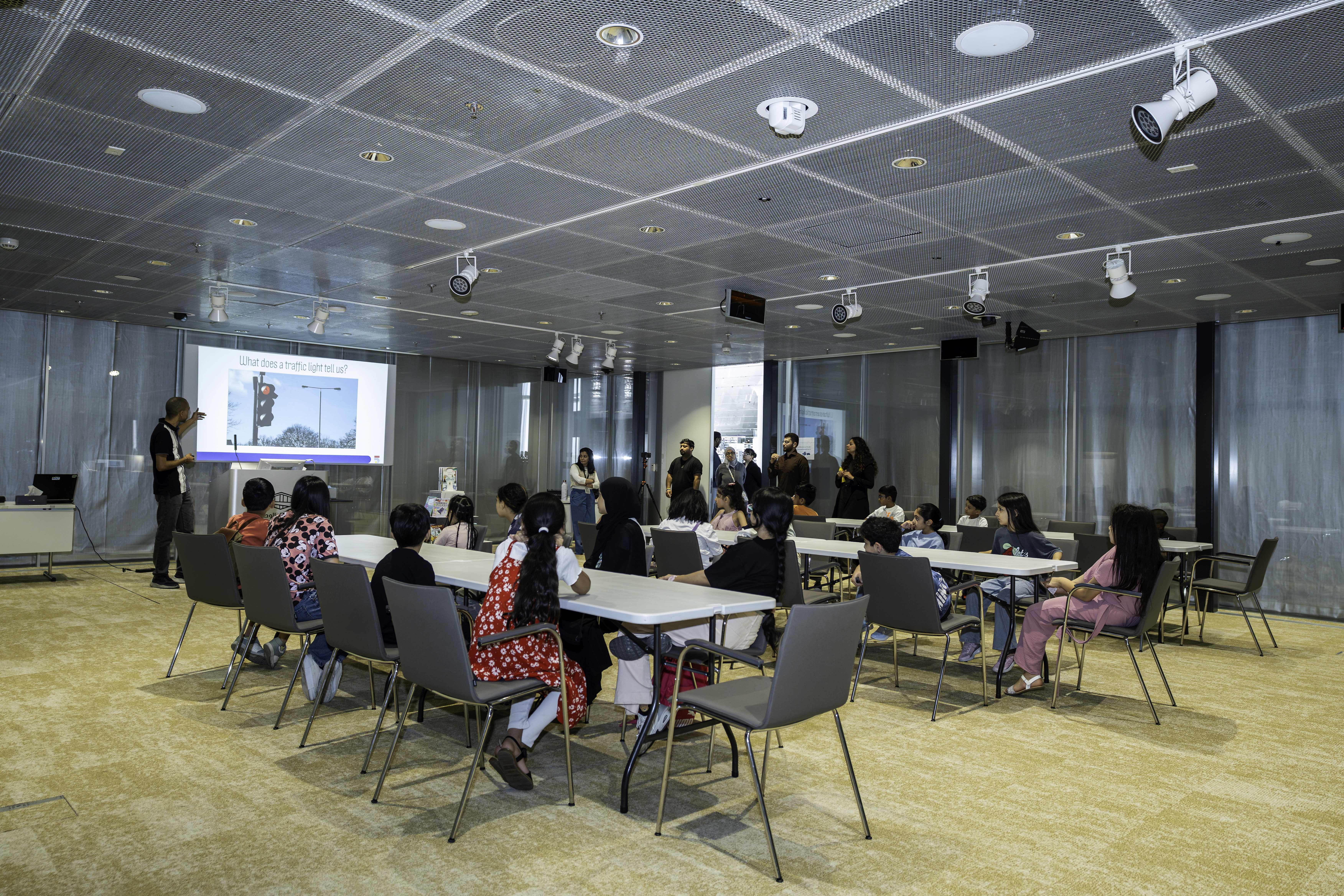
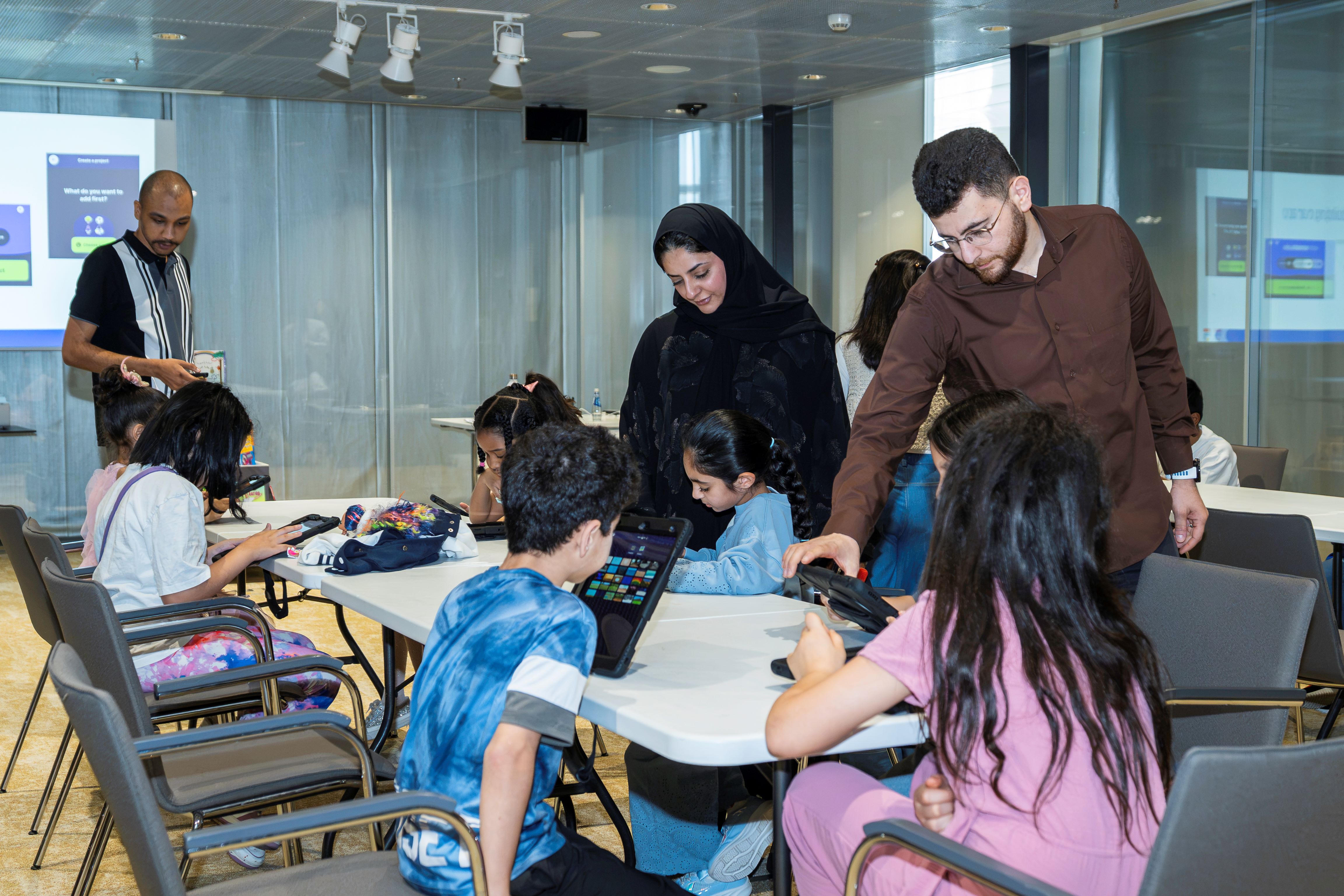
The workshop introduces the basics of sensors, inputs and outputs by allowing participants to explore how their iPads detect physical movements.
Participants will learn how to use code blocks to trigger specific actions using OctoStudio – a free mobile coding app. They will explore OctoStudio’s ability to detect the iPad’s tilt, recognize when a person has lost their balance, and use IF/THEN conditionals to seamlessly translate these physical movements into digital alerts and visual cues.
تقدّم الورشة أساسيات أجهزة الاستشعار والمدخلات والمخرجات، من خلال إتاحة الفرصة للمشاركين لاستكشاف كيفية اكتشاف أجهزة iPad للحركات الجسدية.
سيتعلّم المشاركون كيفية استخدام كتل البرمجة لتنفيذ إجراءات محددة، وذلك من خلال استكشاف قدرة تطبيق OctoStudio على اكتشاف ميلان جهاز iPad والتعرّف على لحظة فقدان الشخص لتوازنه وسقوطه. ومن خلال هذه العملية، سيتقن المشاركون استخدام العبارات الشرطية (IF/THEN) لتحويل هذه الحركات الجسدية إلى تنبيهات رقمية.

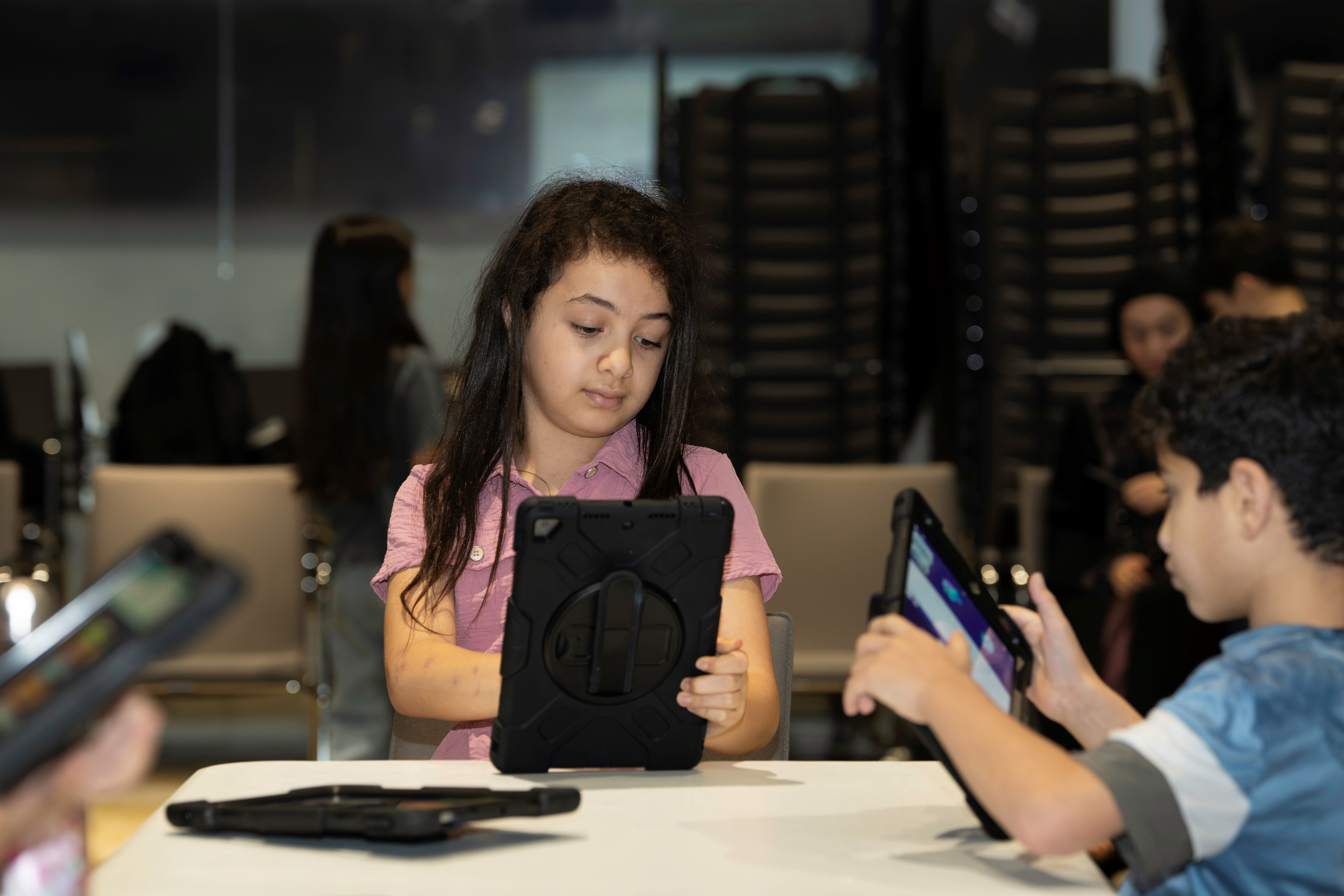
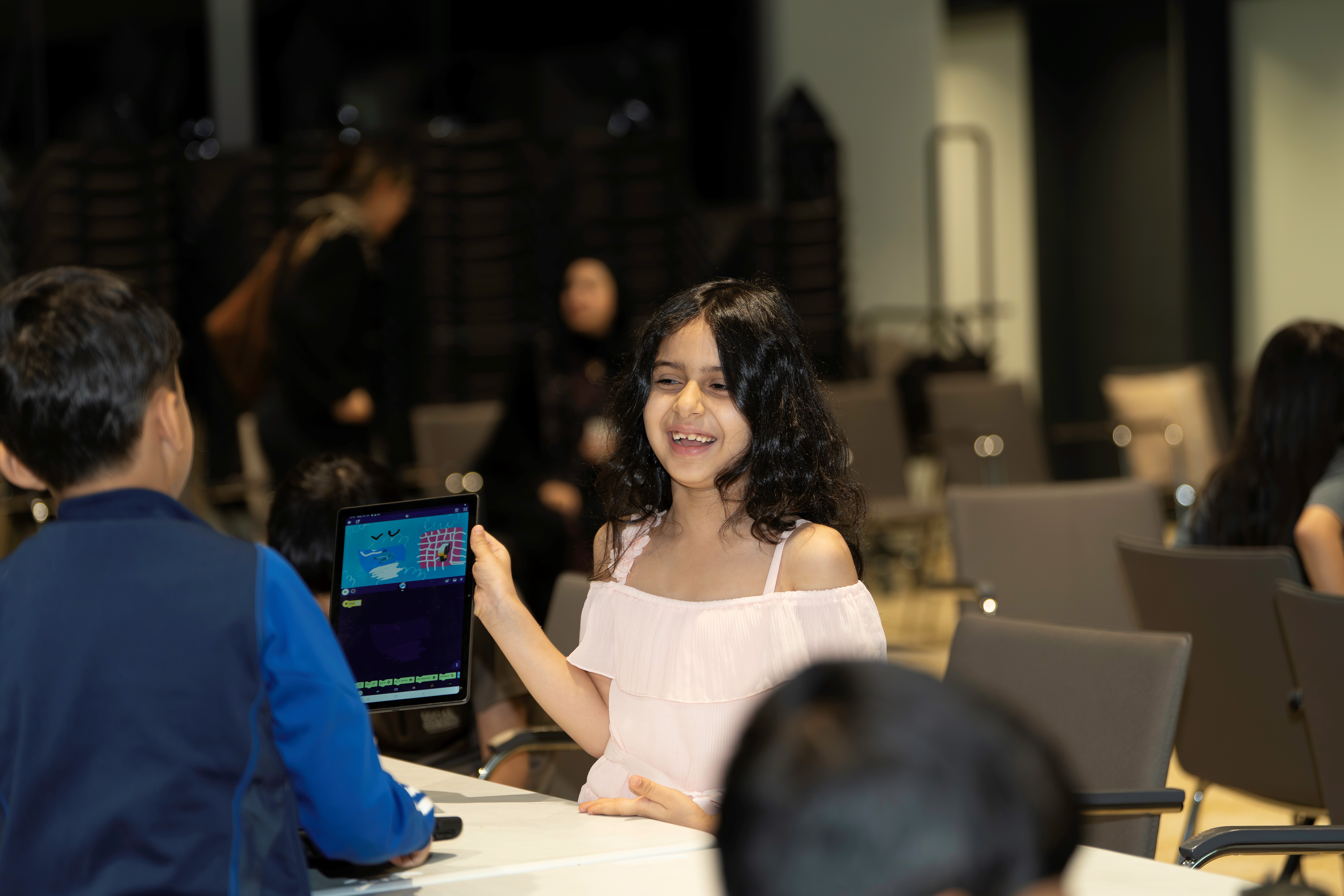
iPads/Tablets with OctoStudio installed
Lesson Materials:
Due to the participants’ young age, understanding code logic (IF/THEN) can be a bit tricky, especially if participants don’t have prior experience. Therefore, it is very important to ensure that all participants follow the instructor to ensure they don’t fall behind.
نظرًا لصغر سن المشاركين، قد يكون فهم منطق البرمجة (IF/THEN) أمرًا صعبًا بعض الشيء، خاصةً بالنسبة للمشاركين الذين ليست لديهم خبرة سابقة في البرمجة. لذلك، من المهم جدًا التأكد من متابعة جميع المشاركين لشرح المدرب وخطواته، لضمان عدم تأخر أي منهم عن بقية المجموعة.
Try to see determine if any participants have prior coding experience. Ask about their experience with accessibility assistance and struggles faced by vulnerable people. From there, introduce the concept of human senses compared with digital sensors, explaining how sensors collect and interpret data from their surroundings.
Introduce the importance of accessibility in shared public spaces, and how technology can help create a more inclusive environment.

Engage with the participants by asking what are our five senses and the organs responsible for sensing.


Explain the basic operation of Sensors and some common examples that the participants might be familiar with, in addition to the types of sensing that will be used in the session.
Comparing computers to the previously mentioned human senses by using real world examples.


Explain how a computer produces an output from received information by comparing it to how traffic lights work. Use the traffic light analogy to introduce how if-then conditions control computer actions.
Explain that an output is how a computer displays data.


Introduce the topic of the workshop content and the function of the app. Then, brainstorm with the participants scenarios in which the app could be useful.

Guide the participants to find and open the app on their devices. Optionally, introduce them to the sprite customization tools and allow them time to create their own custom sprite.


Explain the concept of block coding within OctoStudio and the different code block categories.


Beginning the actual app logic, this places a continuous "forever" loop after the initial trigger.
1- Drag the forever loop and attach it to the start button

Explain the idea of a variable as a container that is used to hold information
2- Add the set variable block and create a new variable named Y

3- To display the sprite direction, drag the info block and set it to direction

This part is needed to allow the sprite to rotate with the horizontal movement of the iPad.
4- Create another variable and name it X

5- Use the multiplication operator to multiply the horizontal device tilt angle by 4.5

6- Use the addition operator to add 90 to the result of the previous step and set it as the value of X

This way, the sprite will also rotate left or right depending on how the iPad is tilted
This step sets the default color for the sprite when in safe conditions, and allows the sprite to rotate with the device movement by setting its direction.
7- Set the default sprite color to go back to normal

8- Map the sprite direction to 180° range of motion

Setting up the IF conditionals to create the safety warning
9- Using the earlier if-then concept, add an if condition and set it to check if X exceeds 130, indicating an unsafe condition
10- Completing that condition, set the sprite color to red and add a call for help

11- Mirroring the previous block, this sets up the exact same alert if the tilt drops below 30

Add a physical shake trigger to simulate the motion for a fall, and shake the device to start the app.
12- To finalize the script, replace the start button with a physical shake trigger to test the app

Summarize the workshop activity, including how sensors and conditional logic can be used to create any app

Having trouble? Let us know by completing the form below. We'll do our best to get your issues resolved quickly.
"*" indicates required fields